

What is this?
Facebook Publishing is where you publish posts to your connected Facebook Page — text and links, photo posts, videos, reels, and stories — now or on a schedule. You can also track each post’s status and save drafts.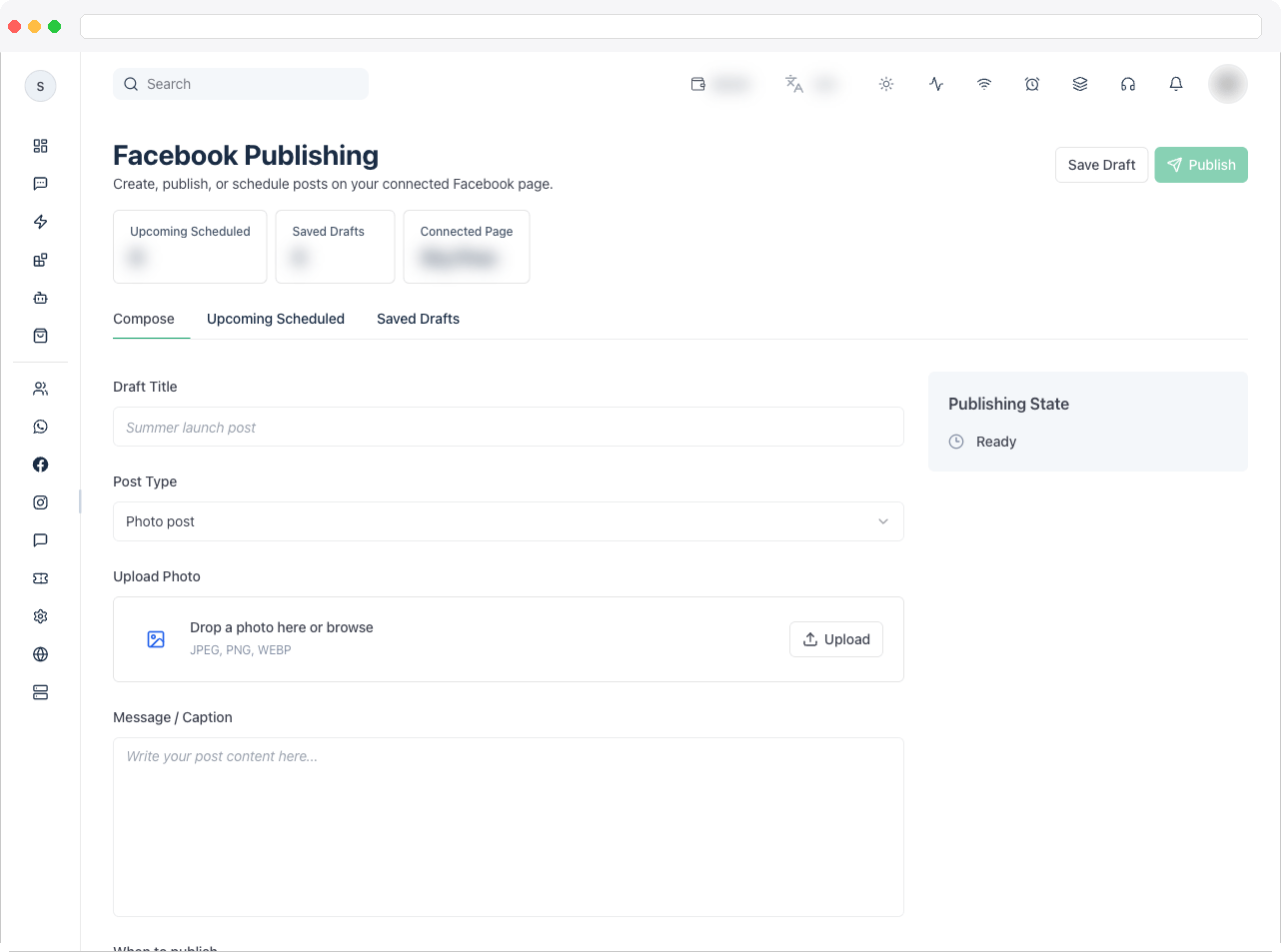
You need a connected Facebook Page, a plan that includes Facebook, and permission to publish posts. If the Page hasn’t allowed managing posts, you’ll be asked to reconnect it.
What can I do here?
- Publish a Post, Photos, Video, Reel, or Story
- Preview the post as you build it
- Publish now, or Schedule it
- Follow every post’s status in Posts, cancel a scheduled one, or retry a failed one
- Save drafts and edit them later
- See posts you scheduled earlier with Facebook’s own scheduling
How to use it
Go to Facebook → Publishing and choose a tab: Compose, Posts, or Drafts.Compose a post
-
Choose the Post type:
- Upload media. For photos, use Move left / Move right to put them in order.
- Write the Text (a text post needs text or a link). A Link can only be shared in a text post.
- For a video, add an optional Video title. For reels and video stories, you can turn on Made with AI to add Facebook’s AI label.
- Under When to publish choose Publish now, or pick a Date and time to schedule — at least 10 minutes ahead and within 75 days, in the time zone shown.
- Click Publish (or Schedule), or Save draft to give it a Draft name and finish later.
A Page can publish 30 reels through the platform in 24 hours.
Track your posts
The Posts tab shows everything published or scheduled from here with its Type, Status and When. Statuses run Scheduled → Queued → Sending to Facebook → Processing → Publishing → Published, or Failed or Cancelled. Use Cancel on a scheduled or queued post, Retry on a failed one, and Refresh to reload. Tiles at the top count Scheduled, In progress, Published and Failed. Posts you scheduled before using this page, with Facebook’s own scheduling, appear under Scheduled earlier on Facebook (read-only) with an Open on Facebook link — manage those on the Page.Drafts
Drafts are saved in this browser only. In Drafts, use Edit draft to reopen one or Delete draft to remove it.Troubleshooting / Technical Notes
- “This file can’t be used here.” Check the file type and the rules for the chosen post type — for example reels need a video, and stories don’t take text.
- “This video must be 3 to 90 seconds long.” Reels have length limits; trim the video.
- “Publishing isn’t allowed for this Page.” Reconnect the Page and allow managing posts.
- The post failed. Open it in Posts to see why, fix it, and click Retry.
- My draft is gone. Drafts live in the browser you used; they’re lost if you clear site data or switch browsers.